
Profiles and pages
A profile is a complete deck. It holds one or more pages, and each page is a grid of widgets. Use profiles for different situations: "Work", "Streaming", "Media".
The Hierarchy
The Hierarchy panel shows every profile and its pages in one tree. Click the arrow next to a profile to open or close it; a profile that is not open yet loads its pages the first time you expand it. Click a page to open it as a tab, or click a profile to edit its settings in Properties.
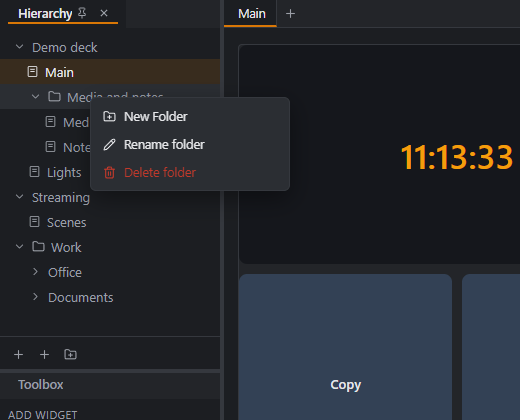
The buttons at the bottom of the panel add a new profile, a page and a new folder. Right-click a row for its menu (rename, delete, new page or folder). To rename, double-click a row or select it and press F2.
Profiles
Each profile is stored as its own JSON file. Select a profile in the Hierarchy and Properties shows its Name, its auto-switch rules and Delete Profile. You cannot delete the last profile.
Which profile a device opens:
- The profile you assigned to that device in Pairing, else
- the default profile in Preferences, else
- the first profile.
A profile can also be switched by a button (the Change profile action), from the drawer on the phone, or automatically by app rules.
Pages
A profile can have many pages. On the phone, swipe left or right with two fingers to move between them. You can also add a button with the Change page action (go to a page, next, previous or back).
Add a page with the Page button under the tree or from a profile's right-click menu. Use the icons on a page row to duplicate or delete it. Selected widgets can be moved or copied to another page or profile.
Folders
Folders keep a long list tidy. There are two kinds:
- Page folders sit inside a profile and hold pages (and other folders).
- Profile folders sit at the top of the tree and hold profiles.
Create one with the New Folder button or the right-click menu, then rename it the same way as a page. Delete folder asks whether to delete the folder together with everything in it, or to keep the contents and remove only the folder.
Folders are only for the editor. A device sees the same pages and profiles in the same way whether or not they are in a folder.
Drag and drop, copy and paste
- Drag a page onto a folder to put it inside, or out of a folder to bring it back. The same works for profiles and profile folders.
- Copy and paste: click a page, profile or folder and press Ctrl+C, then click where it should go and press Ctrl+V. A copied folder brings its whole contents. Pasting on a folder puts the copy inside it. You can paste a page into a different profile, which is the quickest way to reuse a page.
Export and import
- File → Export Profile (.msprofile) saves the current profile to a single file.
- File → Import Profile (.msprofile / .json)… loads one. If a profile with the same name exists you choose Overwrite or Rename.
- If the imported profile uses a plugin you do not have, the editor lists which one, so you can install it and the buttons will work.
This is the easiest way to back up a deck or share it with someone.