
Pair a device
A device must be paired once with a PIN. After that it keeps a token and reconnects without asking.
Pair a phone or tablet
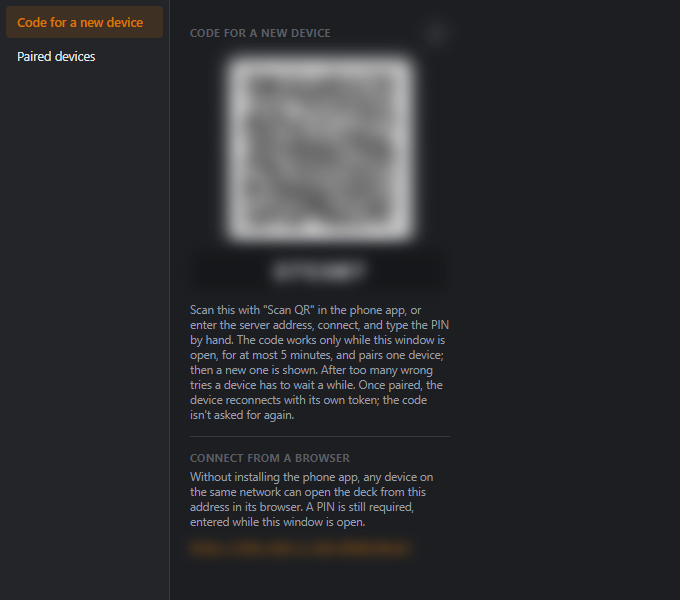
- Open Pairing in the editor. You see a six-digit PIN and a QR code. They work only while this window is open, for at most five minutes, and pair one device; then a new code is shown. A fresh one is also generated each time the window opens, or click Generate a new code.
- In the phone app, scan the QR code, or enter the server address and the PIN by hand.
- The device appears under Paired devices.
If the window says no local network address was found, check that the PC is connected to Wi-Fi or Ethernet.
Use a browser as a deck
Any device on the network can open http://<PC address>:9820/deck/ in its browser. A PIN is still required. The PC address is shown in the tray icon's menu and in the Pairing window.
TIP
The browser deck is handy for testing or for a spare screen, but the Android app adds kiosk mode, offline caching and swipe gestures.
Manage paired devices
In the same window, for each device you can:
- Choose the profile it opens (default: the first profile).
- Turn Follow active window on or off. See Auto-switching.
- Remove pairing to revoke it. The device must pair again with a new PIN.
Remove devices you no longer use or trust: a paired device can press keys, type text and start programs on your PC.