
The editor
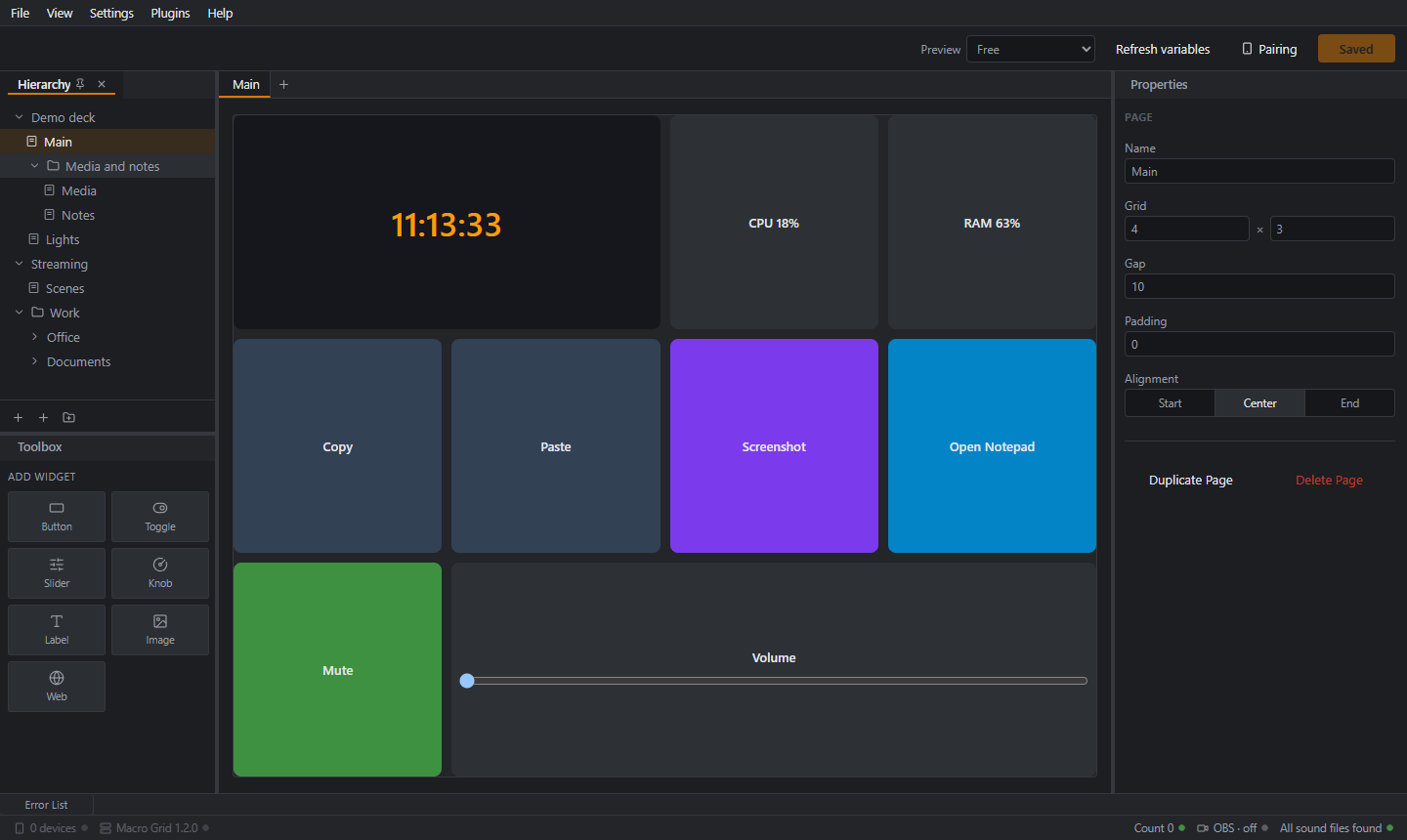
The editor opens in the server's own window (from the tray icon). It only works on the PC itself. Other devices on your network cannot open it.
Layout
The editor is a workspace of panels you can arrange. The default layout has the Hierarchy and Toolbox on the left, the page tabs and the grid in the middle, and Properties on the right.
- Menu bar: File (export and import profiles), View (show or hide panels, save layouts), Settings (Preferences), Plugins (Manage Plugins), Help (version, about and disclaimer, licenses, user agreement).
- Header: a device size for the preview, Preview, Refresh variables, Pairing, and Save.
- Hierarchy: one tree with all your profiles and their pages. Add, rename, duplicate, delete and group them in folders. See Profiles and pages.
- Toolbox: the widget types. Click one to add it to the open page.
- Page tabs and canvas: every page you open gets a tab. The canvas is the grid: drag widgets, resize them from the corner, right-click for a menu.
- Properties: the properties of what you selected: a widget, the page, or a profile.
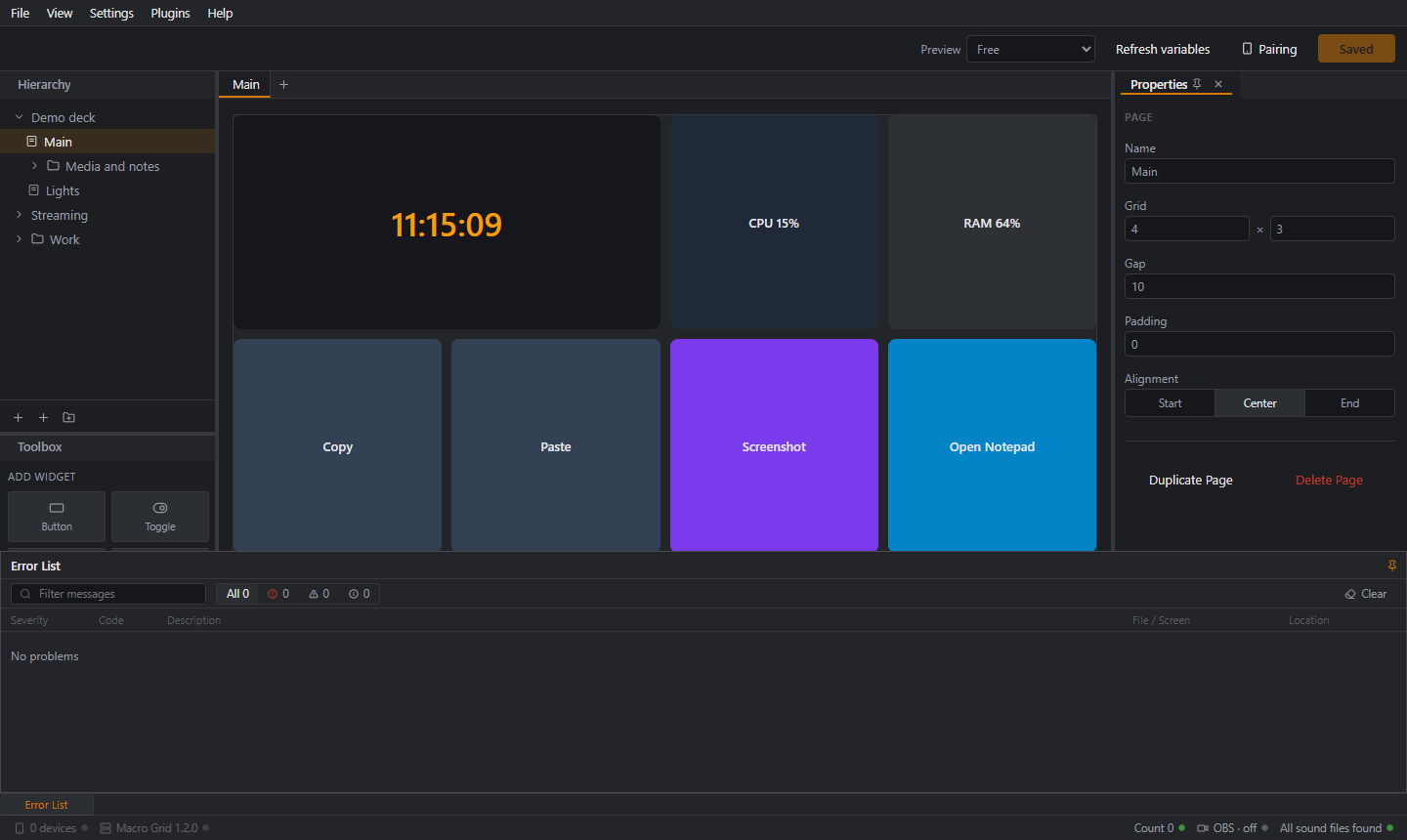
- Error List: a list of problems with a severity filter. It sits at the bottom edge and slides open when you click it; today it shows "No problems" unless something reports one.
- Status bar: server version, connected devices, plugin status and action errors.
Arranging the panels
- Move a panel: drag its tab. Drop it next to another panel to split the space, or onto a panel's tab bar to stack them as tabs.
- Auto-hide: click the pin icon on a panel's tab to collapse it to the edge of the window. Click its name there to slide it open, and pin it again to dock it back. The Error List starts this way.
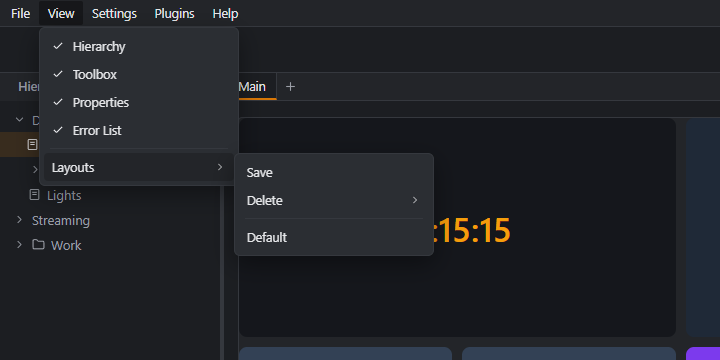
- Close and reopen: close a panel with the ✕ on its tab, and bring it back from the View menu, which lists Hierarchy, Toolbox, Properties and Error List with a check mark on the open ones.
- Layouts: View → Layouts → Save stores the current arrangement under a name. Pick a saved layout from the same menu to switch to it, Delete removes one, and Default restores the original arrangement.
Working on the grid
Select a widget and the Properties panel on the right shows its appearance, content and actions:
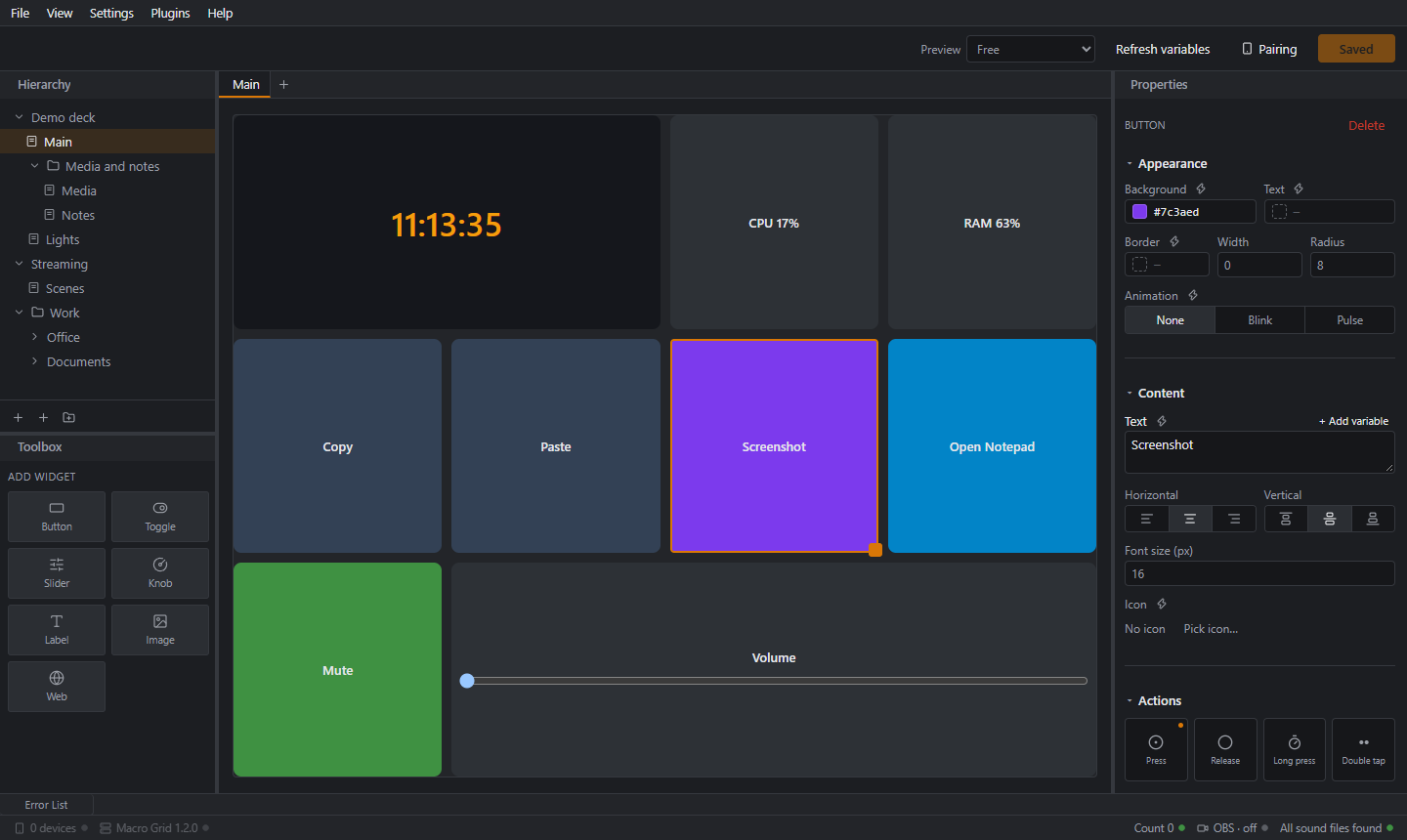
- Click a type in the Toolbox. It is placed on the first free cell ("No free cell left on this page" means the grid is full; enlarge it in the page properties).
- Drag to move, drag the Resize handle to change the size. Widgets snap to the grid and cannot overlap.
- Select several widgets to duplicate, move or copy them to another page or profile, or delete them.
- Select the page (click its name in the Hierarchy) to edit its properties: Name, Grid (columns and rows), Gap, Padding, Alignment (start, center, end).
Preview
The device size list (phone or tablet, portrait or landscape, free or custom) changes how the preview canvas looks, so you can check how a page fits your phone. Add your own device sizes in Preferences. Live values are shown in the preview. Refresh variables reloads the list of available variables, for example after installing a plugin.
Saving
Nothing reaches your devices until you click Save. Saving sends only what changed to connected devices, so the deck does not flash or reset. If you leave with unsaved changes the editor asks first.
Keyboard shortcuts
| Keys | What it does |
|---|---|
| Ctrl+S | Save |
| Ctrl+C / Ctrl+V | Copy and paste the selected page, profile or folder in the Hierarchy |
| F2 | Rename the selected row in the Hierarchy |
While you type in a text field, Ctrl+C and Ctrl+V copy and paste text as usual.
Language and theme
The editor is available in Turkish (default) and English, in dark or light theme: Preferences.