
Plugins
Plugins add actions, variables, settings pages, status bar items and icon packs. They are installed, reloaded and removed while the server runs, with no restart.
Writing your own plugin, the manifest, the SDKs and tutorials are all on the plugin documentation site. Source and releases: macro-grid-plugin.
Install a plugin
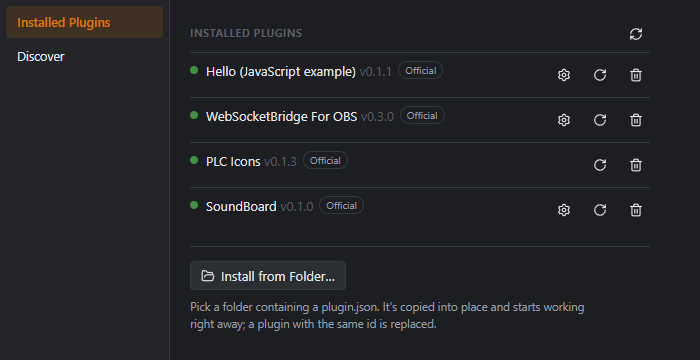
- Get a plugin folder: unzip a release. A plugin folder contains
plugin.json. (An official C# plugin you built yourself is refused; only a development build of the server loads one.) - In the editor open Plugins → Manage Plugins… and choose Install from Folder….
- The plugin loads immediately. A JavaScript plugin first shows the permissions it wants (read variables, add actions, press keys, send web requests to a host) and only runs after you click Allow and enable.
Use Reload after changing a plugin, the gear button for its Settings, and Remove to delete it. Plugins live in %AppData%\MacroGrid\plugins\<id>\.
Trust
Only the official C# plugins run: a C# plugin has full access, like the server itself, so Macro Grid loads one only when it carries a valid official signature, checked every time it loads. Plugins by other authors are JavaScript plugins, which are sandboxed and can only do what you approve. Macro Grid does not review them: install only ones you trust.
Install plugins only from sources you trust
Macro Grid limits what a JavaScript plugin can do: you approve its permissions, keyboard input works only while you press one of its buttons, and some targets are refused. These limits only make abuse harder; they cannot prevent it completely. Install third-party plugins only from sources you trust, read the permissions before you allow them, and be extra careful with a plugin that can press keys and type (input) or send web requests to the internet.
Official plugins
OBS
Controls OBS Studio over its built-in WebSocket (OBS 28 or newer). It adds 22 actions (scenes, studio mode, streaming, recording, virtual camera, replay buffer, audio mute and volume, scene item visibility, text sources) and about 45 live obs.* variables (stream duration, dropped frames, recording state, FPS, CPU and more).
- In OBS: Tools → WebSocket Server Settings, enable the server (set a password if you like).
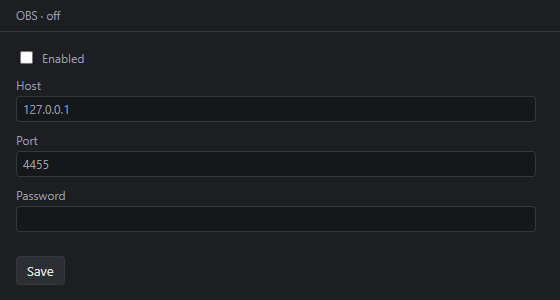
- In Macro Grid: Plugins, click the gear next to OBS, turn Enabled on, and enter the server, port (default 4455) and password. It connects within moments.
- The editor's status bar shows the connection state.
Try it: A streaming deck with OBS. Details: OBS guide.
PLC Icons
An icon pack with 29 ladder-logic (PLC) symbols such as coils, timers and comparison blocks. They appear as their own category in the icon picker. No settings.
Hello JS
A tiny JavaScript example: a counter variable, a settings page and one action. It is the starting point for the plugin tutorials.
Missing plugin in an imported profile
Importing a profile that uses a plugin you do not have tells you which one. Install it and the buttons start working.